Using the Search Bar
In this Guide:
See the tutorial video for this topic: Search/Advanced Search.
Each page of My Trimble Protected has different searchable fields. The searches performed in My Trimble Protected are not wide database searches, but instead are approximate string matching (or fuzzy string) searches focused on certain tables. The type of search available depends on which screen/page you are currently in.
The drop-down "Search In" drop-down will show all available categories that can be indexed from the search bar on any page at any time. To use the search bar:
-
Use the drop-down menu to select a Smart Blox to search in.
-
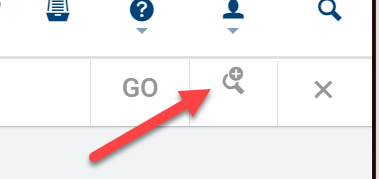
Enter any keyword related to the category, and click GO to search.
-
OR to see all entries for the Smart Blox, leave the search bar empty and click GO.
Additionally, click the magnifying glass icon for Advanced Search and the disk icon for Saved Search.

Not all fields are searchable or will be displayed in the search results. Each searchable page maintains two lists:
-
Fields that are searchable.
-
Fields that are displayed in the search results.
Error Messages:
-
No results found - Your search didn't return any results.
-
Too many records found. Please refine your search criteria. - This error message means that there were too many results found. Refine the search by adding more criteria such as a longer number string or more letters.
Advanced Search
Use Advance Search to perform a more detailed or precise search. Users can do an exact match search for any entity using the Advanced Search function. Additionally, Users can save frequently used searches for immediate access. Data entered in Advanced Search text will be available until the user navigates to a different entity.
Once a search category is selected, clicking the Advanced Search icon (magnifying glass) allows you to pick specific criteria to search for and configure how the results are displayed.
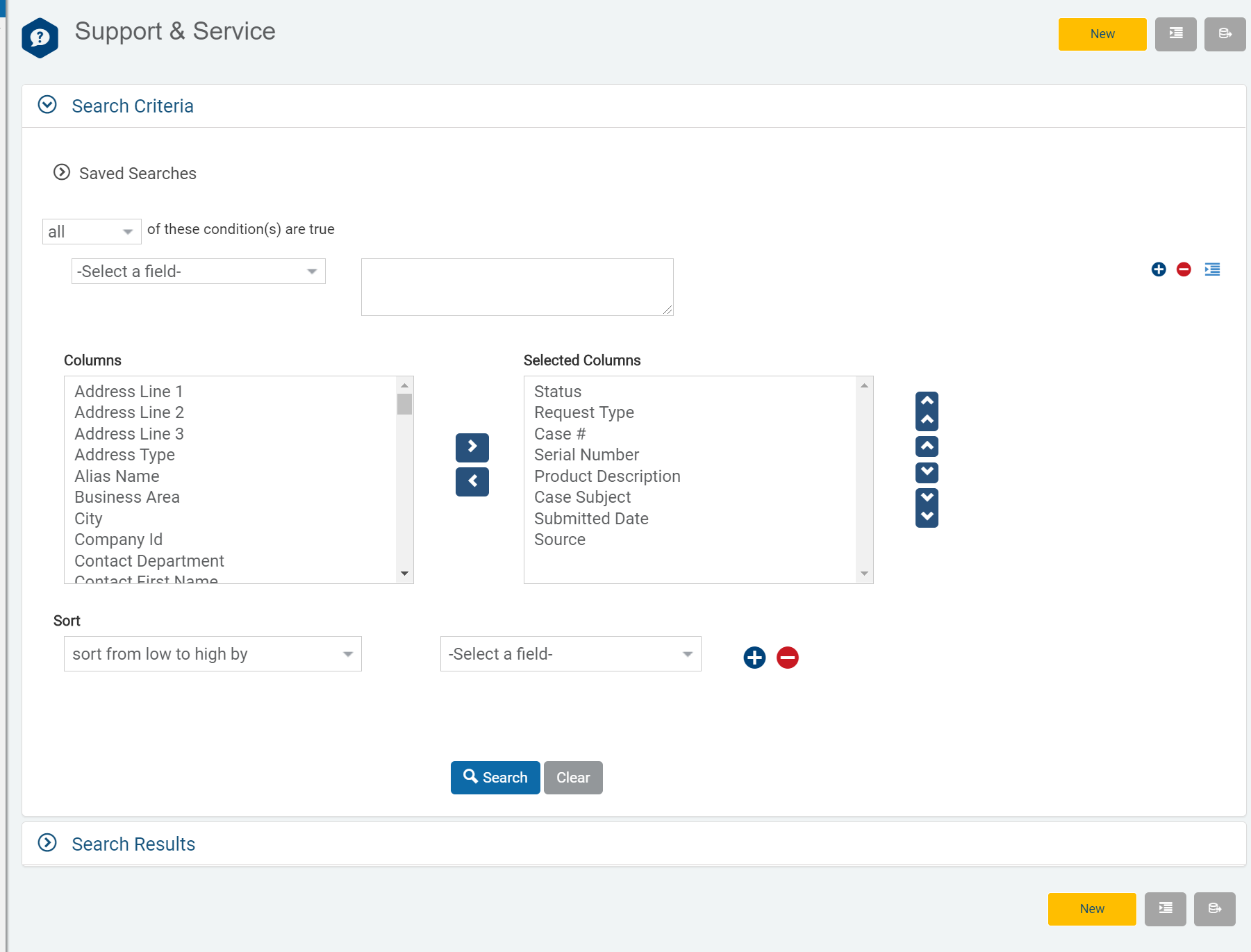
Depends on current page/screen, Advance Search page will show different Search Criteria fields and Result columns. For instance, if user in registration search or details screen and if user clicks on Adv. Search, it will show criteria fields and result columns related to registrations.
Search Criteria contains three parts:
- Conditions
- Use the drop-down menus to define search parameters.
- Add/delete conditions using the +/- buttons
- Group conditions together using the Any/All drop-down.
- All of these conditions are true: Triggers an "and" condition in which both conditions must be true.
- Any of these conditions are true: Triggers an "or" response in which either of the conditions may be true.

-
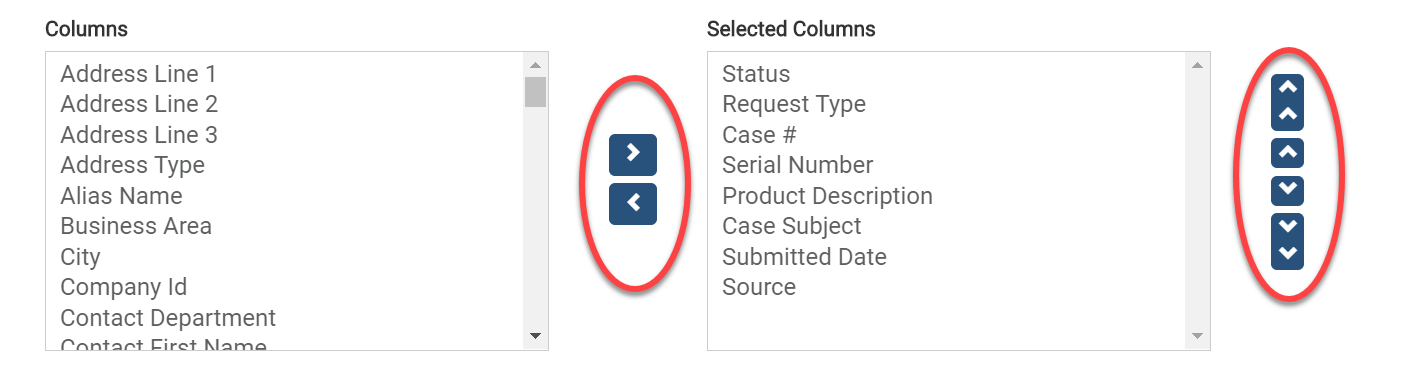
Columns or Fields
- Arrange the display of Search Results.
- Use the left/right arrow buttons to move Fields from Columns (all available Fields) to Selected Columns (fields to be displayed in the Search Results).
- Use the up/down arrow buttons to order the Fields in the Search Results.
-
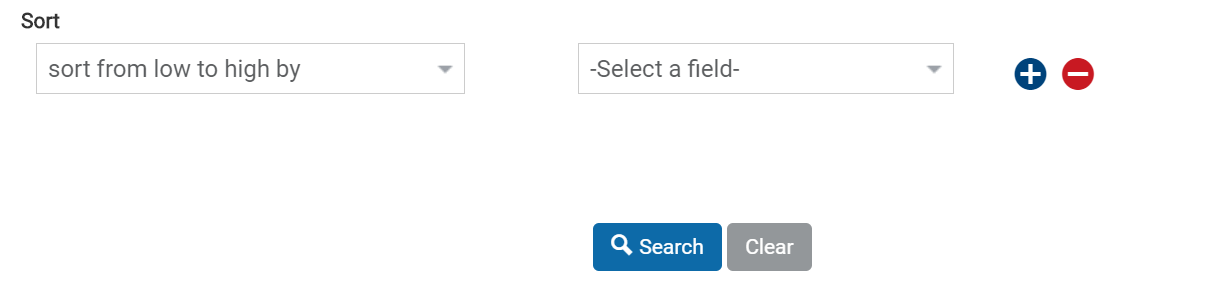
Sort
- Apply other Search Results formatting using the drop-down menus.
-
Click the Search button to initiate a search. For further sorting, click the sorting icons at the top of each column.

Saved Searches
Advance Search will allow user to save their search criteria so that user don’t have enter same criteria every time. For security reasons, searches can be saved at the Private or Organization level.
You can save frequently used search criteria for quick access. Each Smart Blox keeps a record of Saved Searches.
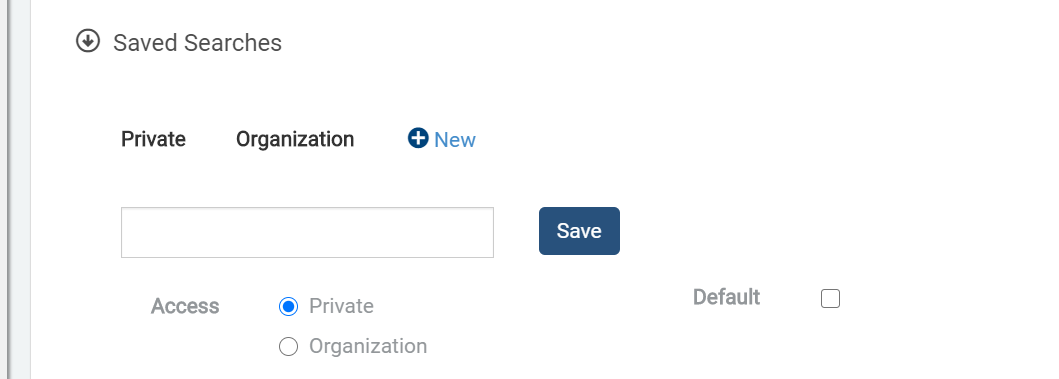
To create a new Saved Search:
-
Enter the desired criteria under the Criteria section (see Advanced Search for more details about selecting search criteria)
-
Open to the Saved section and enter the Name of the new Saved Search
-
Define Access:
- Private: Only viewable to your User account.
- Organization: Viewable to everyone.
Click Save.
Exporting Search Results
-
After a report has been generated, it is possible to export it
-
Select the "Export" drop down arrow and select the preferred export format.
-
Either Open or Save the file.