My Insights
Accessing Reports
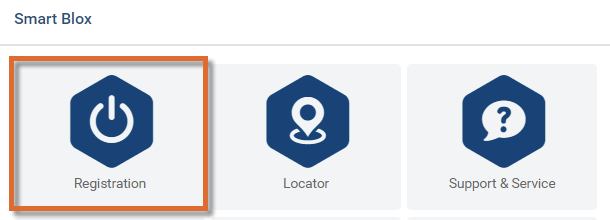
- Select Registration from the Home screen
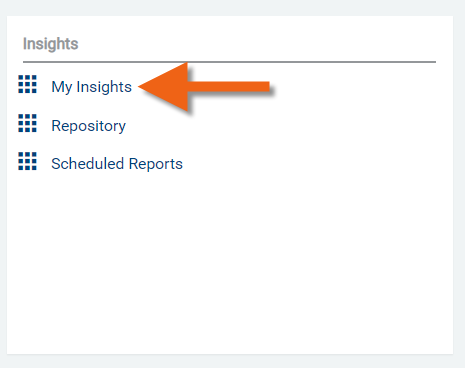
- Select My Insights from the panel
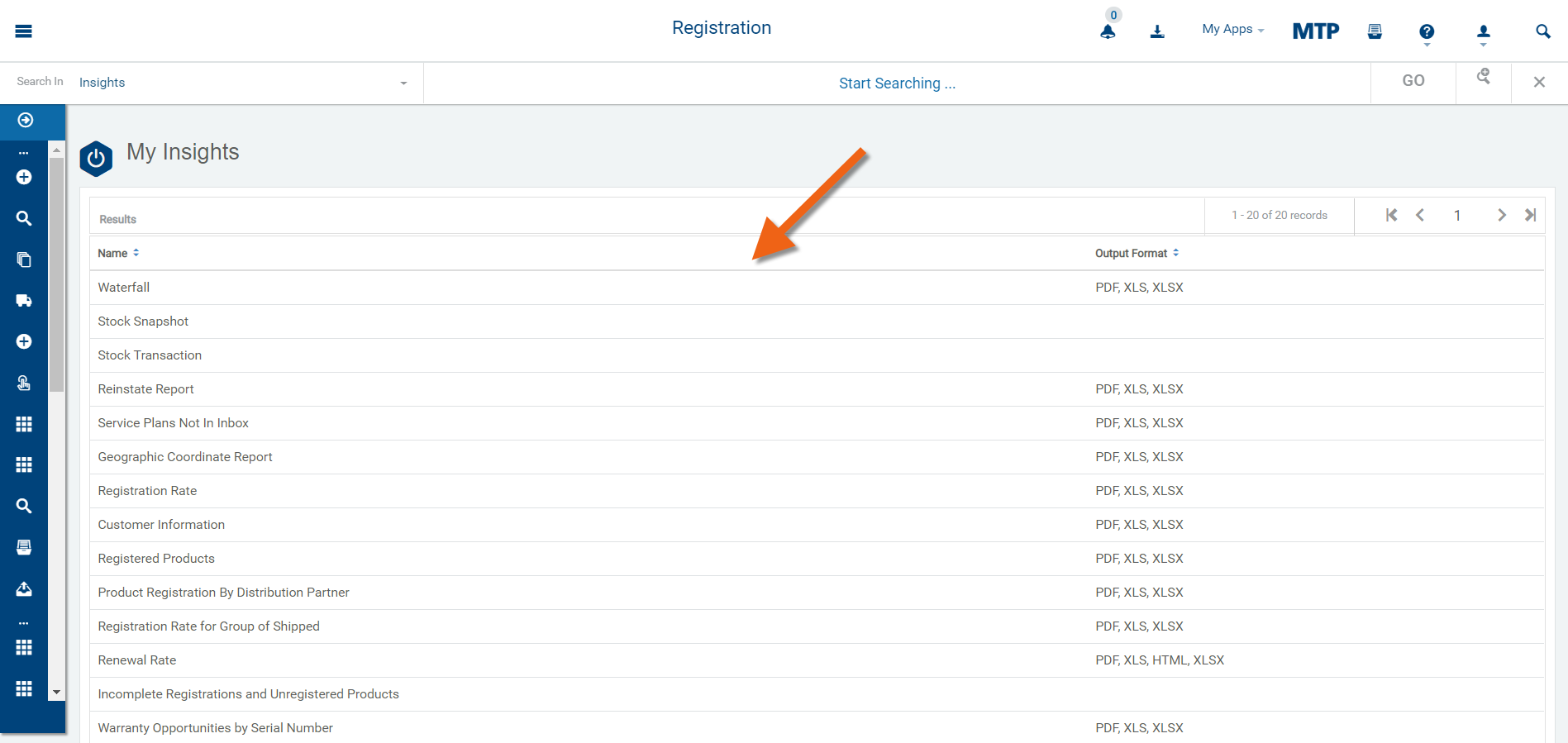
- Select a report to view
Report Criteria
- Select any report from the search results screen.
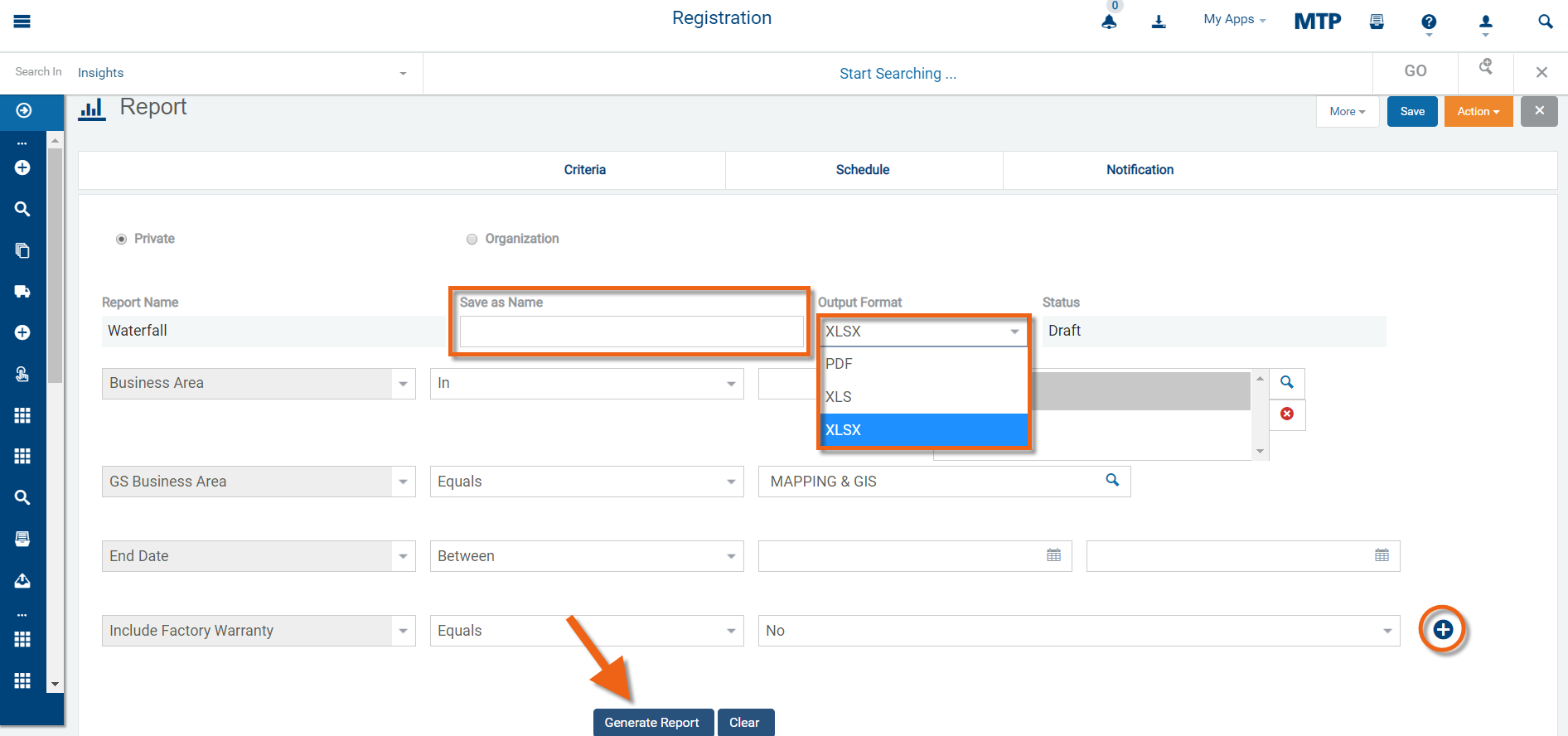
- Provide a name for the report in the "Save as Name" field.
- Select the output format required from the drop down.
- Add the criteria required for the report using the "+" and select the required criteria.
- Select Generate Report
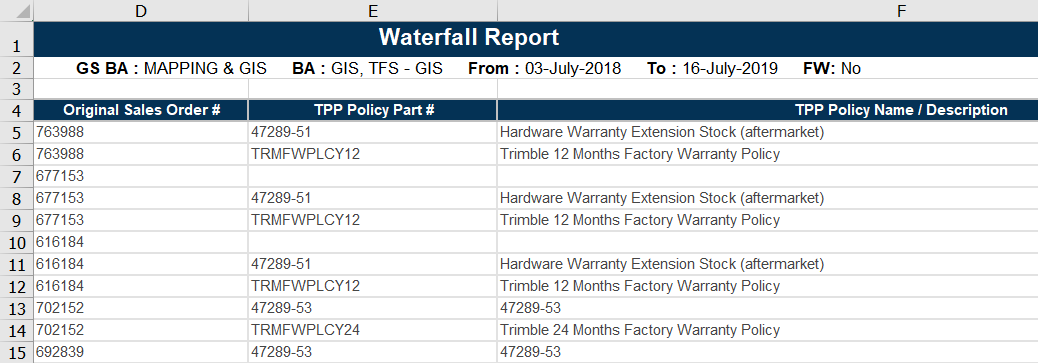
Example report:
Report Schedule
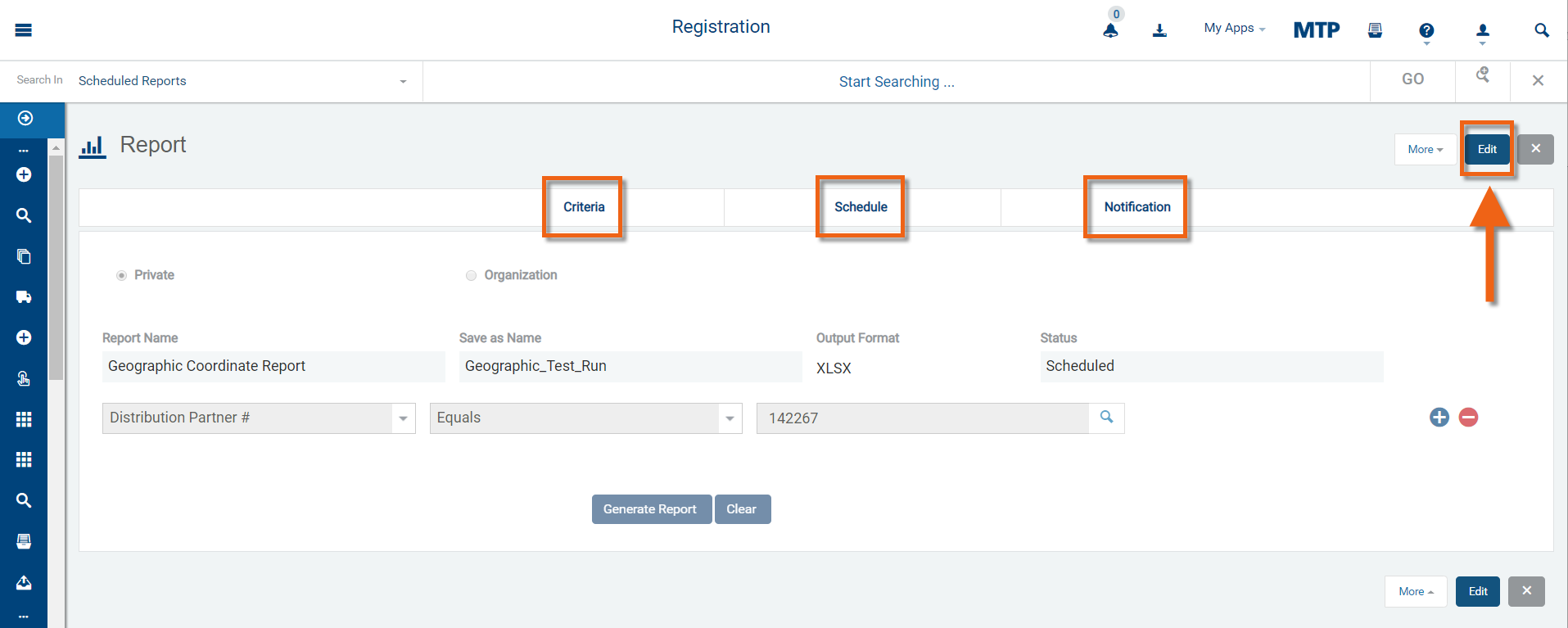
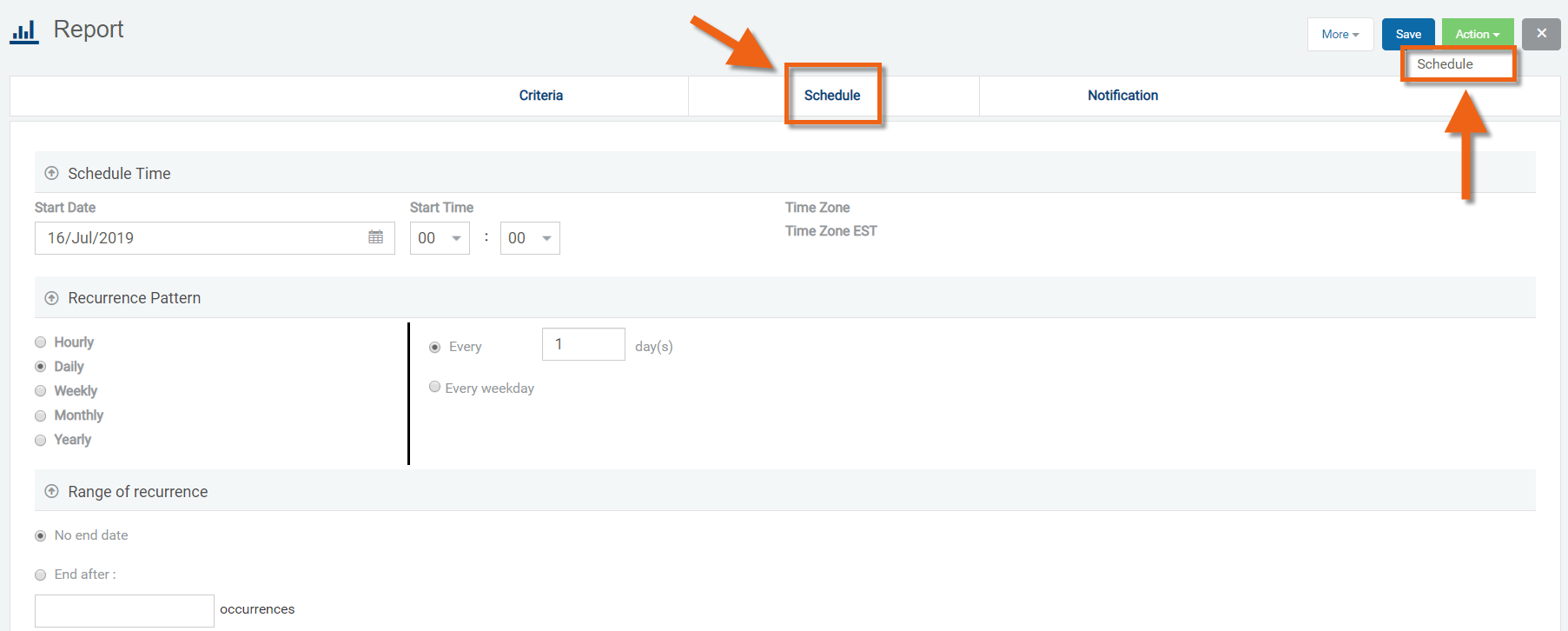
- Select Schedule tab from the report
- Make the required changes for the schedule
- Click the "Action" button and select "Schedule" to save and schedule this report.
Report Notification
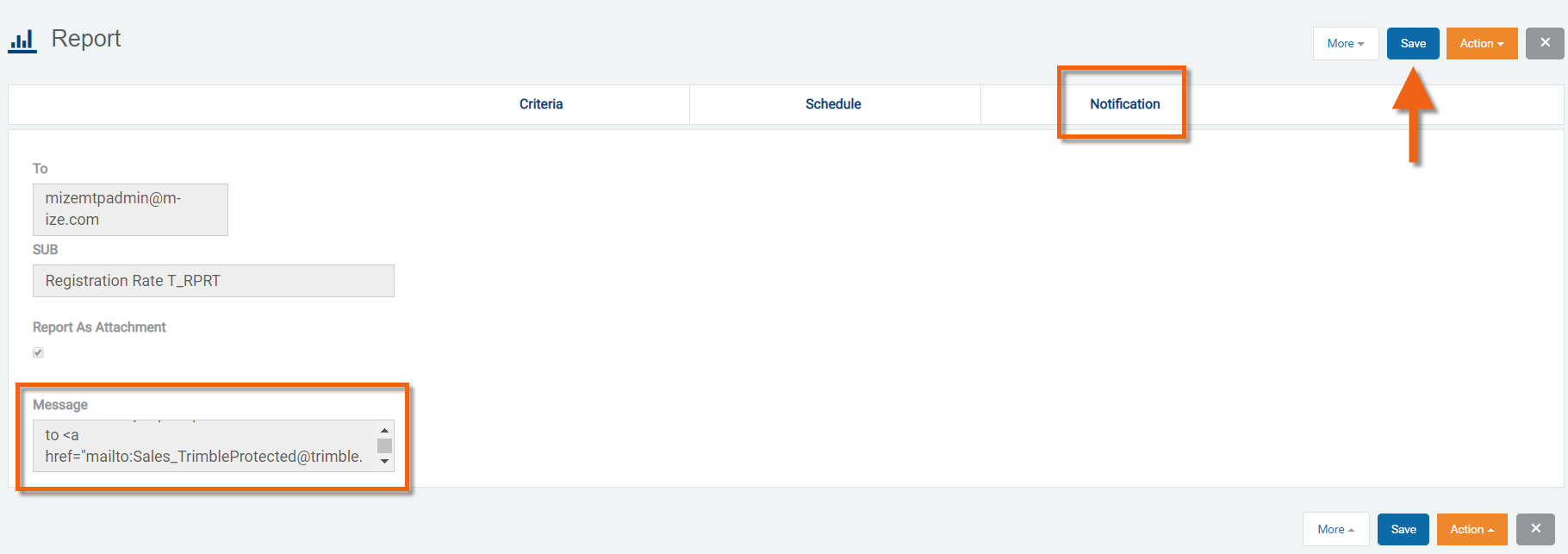
- Select Notification tab from the report
- The To, Subject line, and Message body are already pre-populated and ready to save.
- Click "Save"
Repository
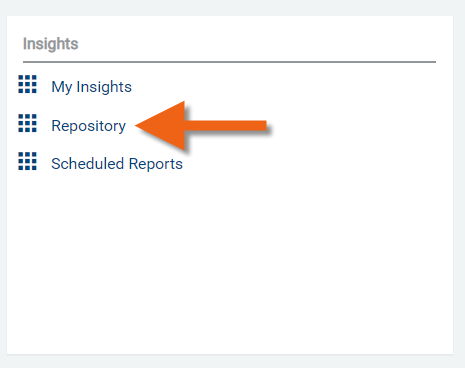
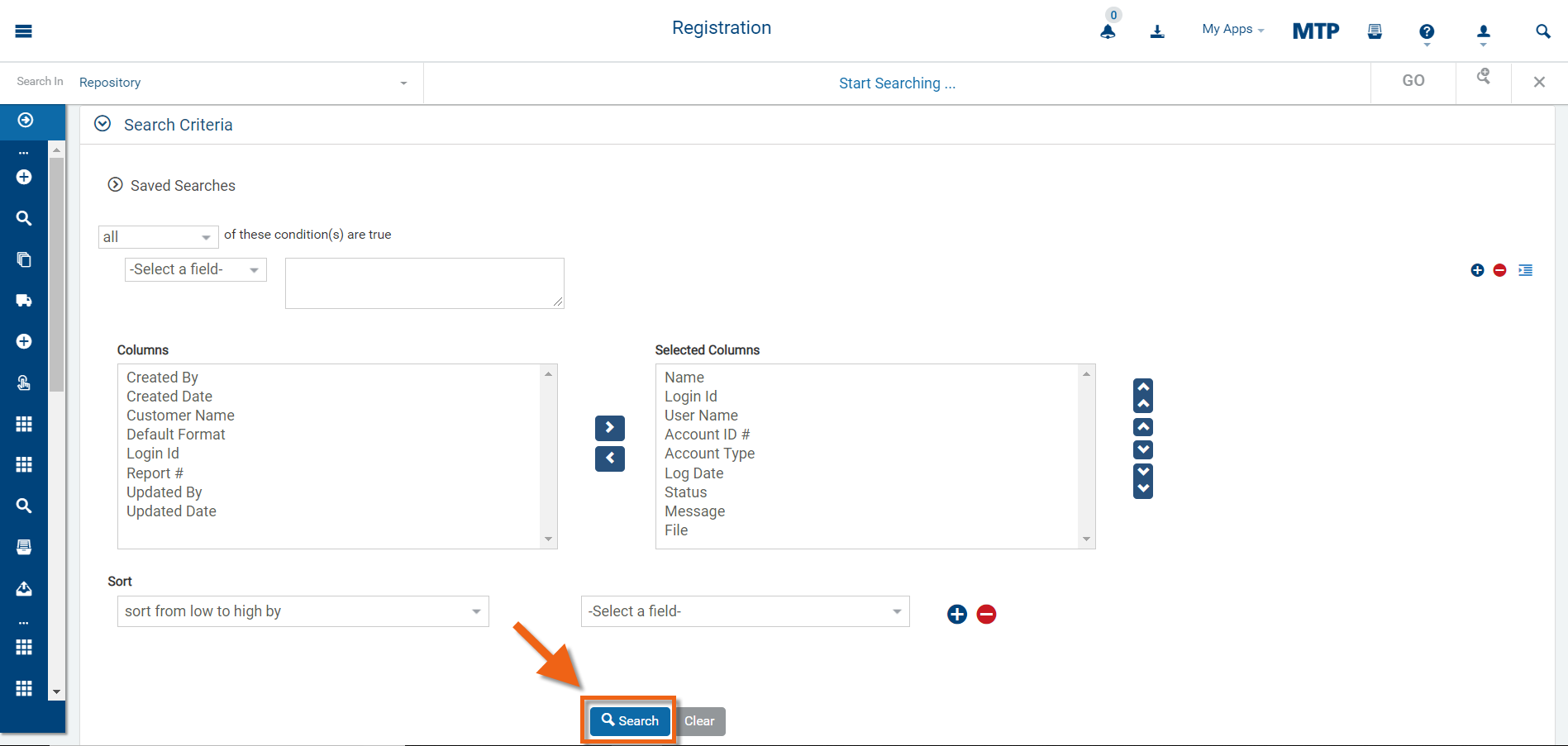
- Select Repository from the Registration sub panel.
- Click "Search", or add any additional criteria and then click "Search".
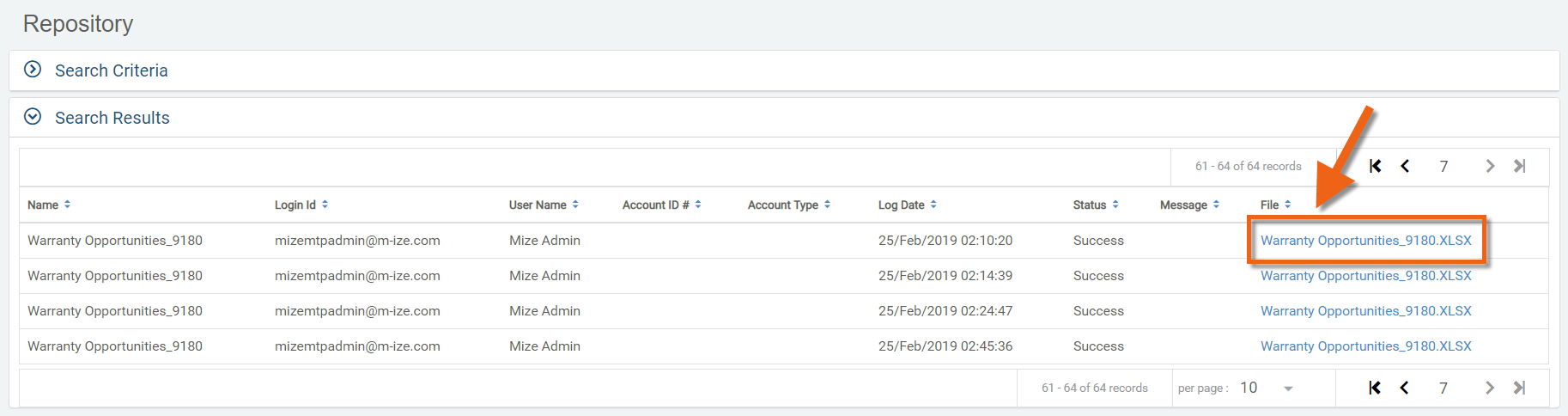
- View the status of reports that have been generated.
- Click on the report name to view the report.
Scheduled Reports
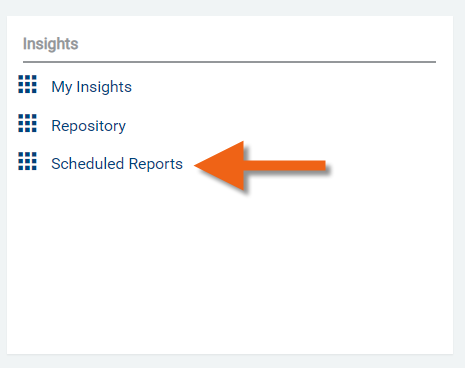
- Select Scheduled Reports from the Registration sub panel.
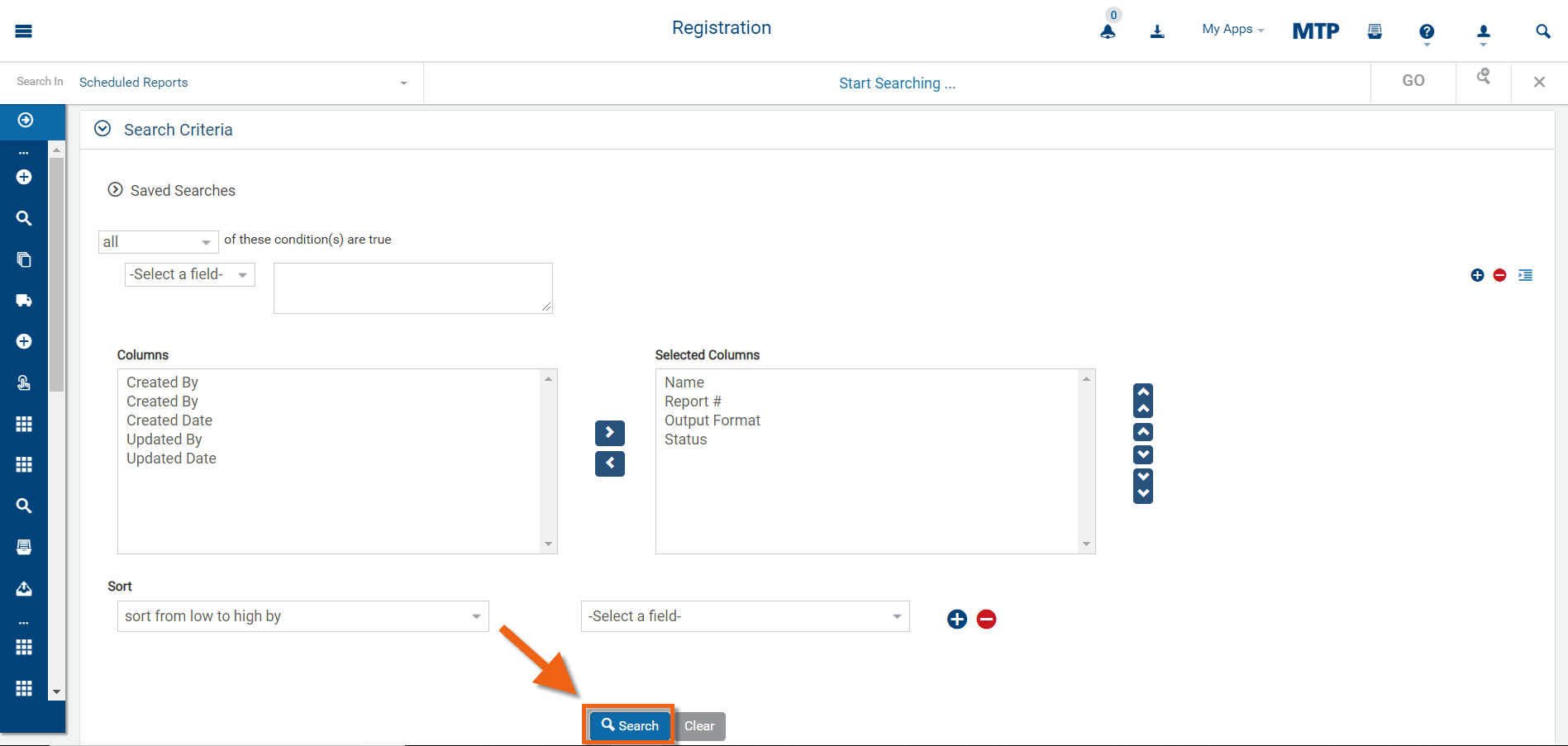
- Click "Search", or add any additional criteria and then click "Search".
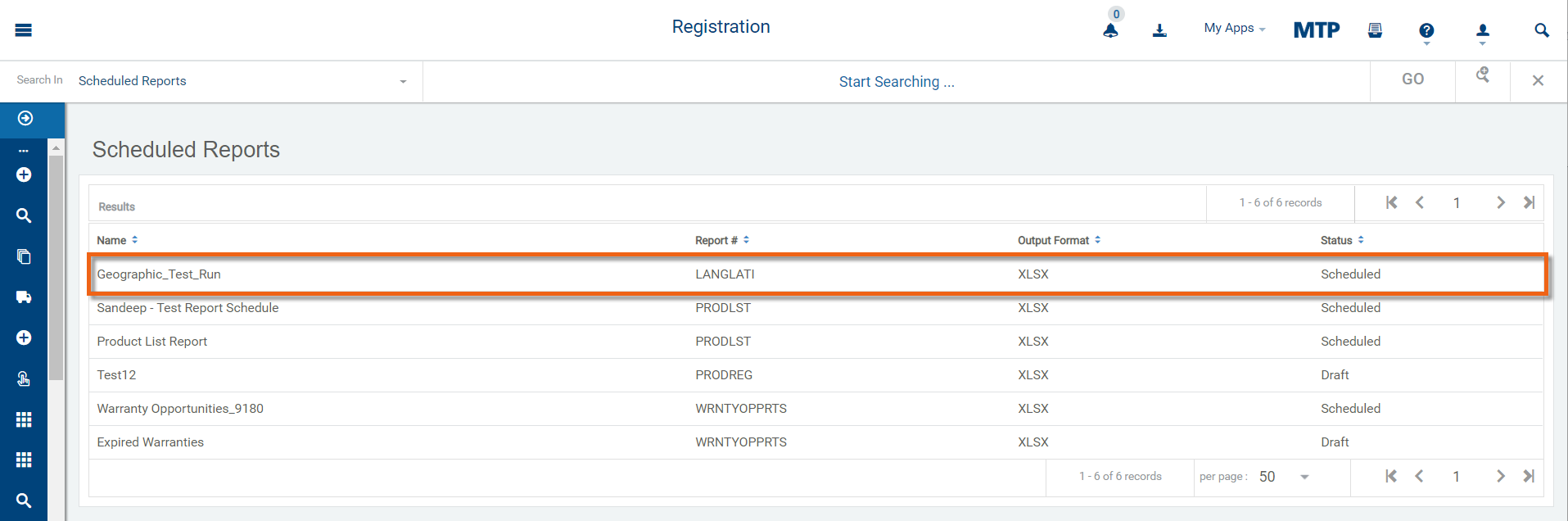
- View the list of scheduled reports
- Select any scheduled report to view more details and to edit as required