Navigating the Platform
Smart Blox Landing Page
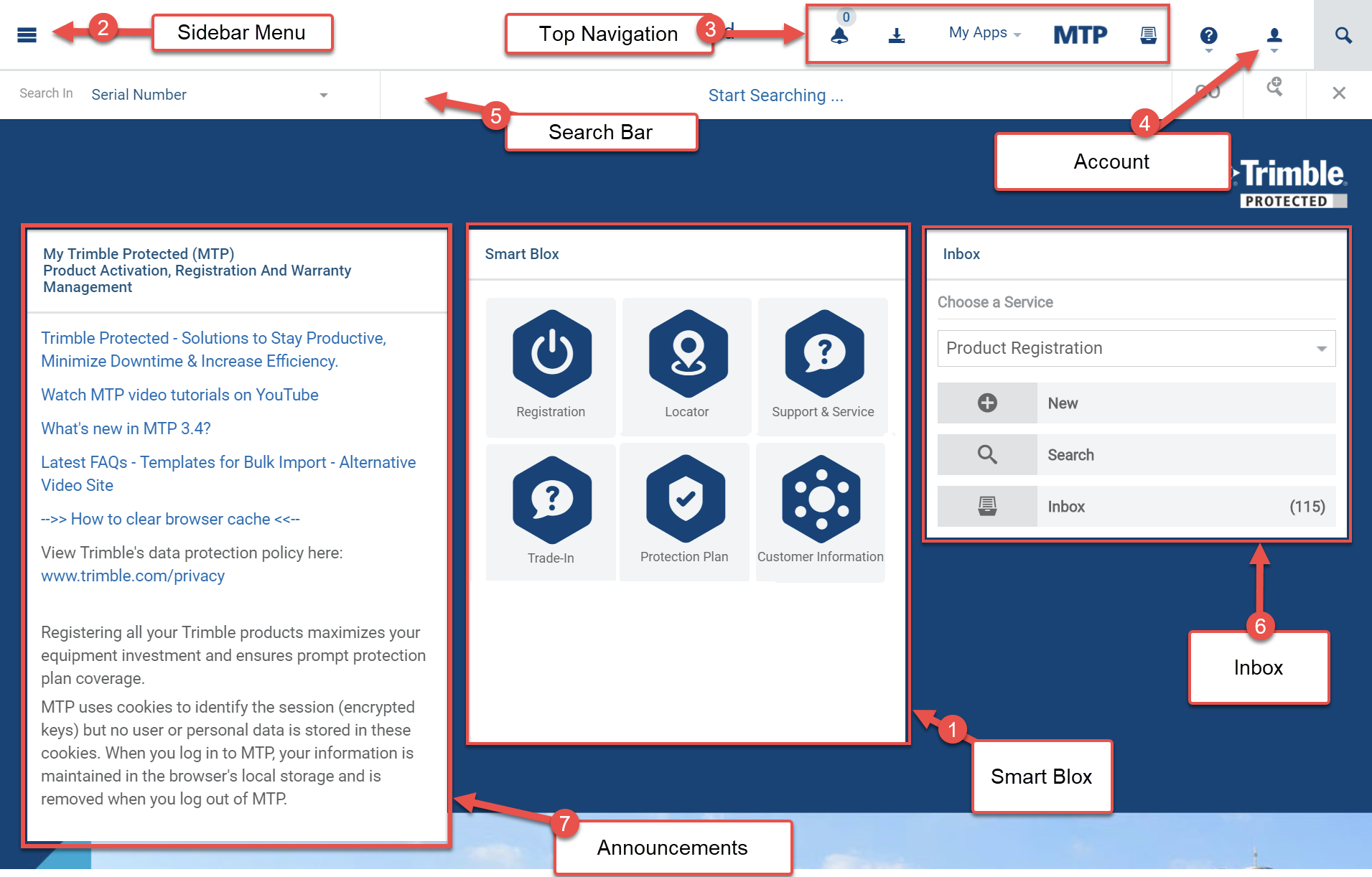
The landing page contains the following:
-
Smart Blox - Use the Smart Blox to view related actions on the platform.
-
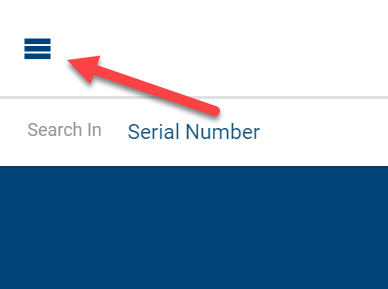
Sidebar - menu icon in the top left corner allows navigation from any page.
-
Top Navigation Bar - action icons in the top center showing relevant notifications and actions
-
User Account - drop-down menu in the top right corner (See: Account)
-
The Search Bar is accessible from any page (See: Search for more details). Use the drop-down to search by category.
-
Inbox Panel
-
Announcements Panel
Navigating Smart Blox
Smart Blox will bring you to different areas of the platform based on commonly performed tasks. Smart Blox can be accessed from the home page OR the sidebar on any page.
 a
a
The sidebar will allow you to navigate the Smart Blox from any page.
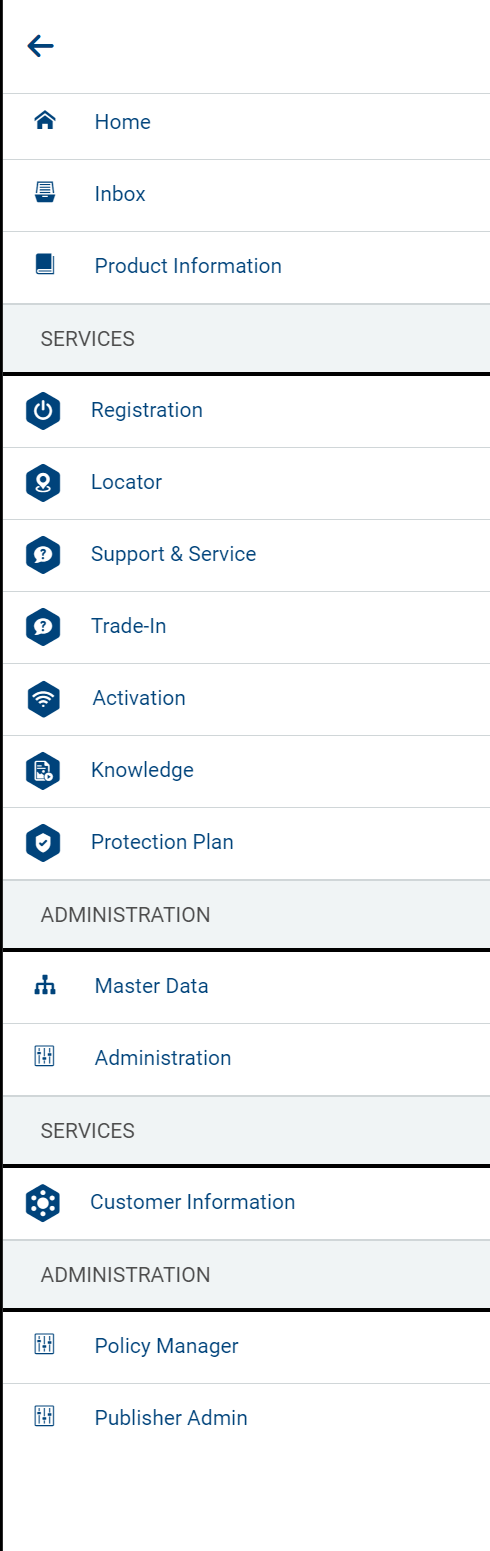
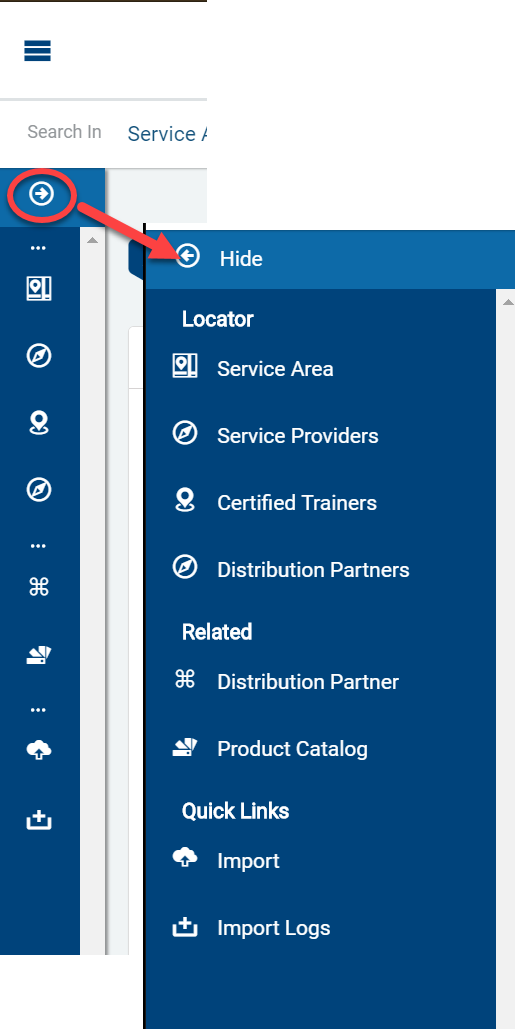
Once inside of a Smart Blox, click the sidebar to see all sub-panels within the Smart Blox.
You can also find commonly used Smart Blox results by using the search bar.
1. Click on the Search in drop-down to see all possible results.
2. Enter a keyword OR leave the search bar empty to see all results.
3. Click GO.

For more, see Using the Search Bar.
Upper Navigation

You receive Alerts when specific actions are performed. For example, if a user requests more information on a Quote, the creator may receive an Alert (depending on what Notifications have been set up by Administrators). Click the bell icon to access Alerts, then click on individual Alerts to open them.


Inbox
The Inbox provides you with a quick overview of pending items in their Work Queue. You can filter their Inbox by module and click on individual transactions to go directly into them.

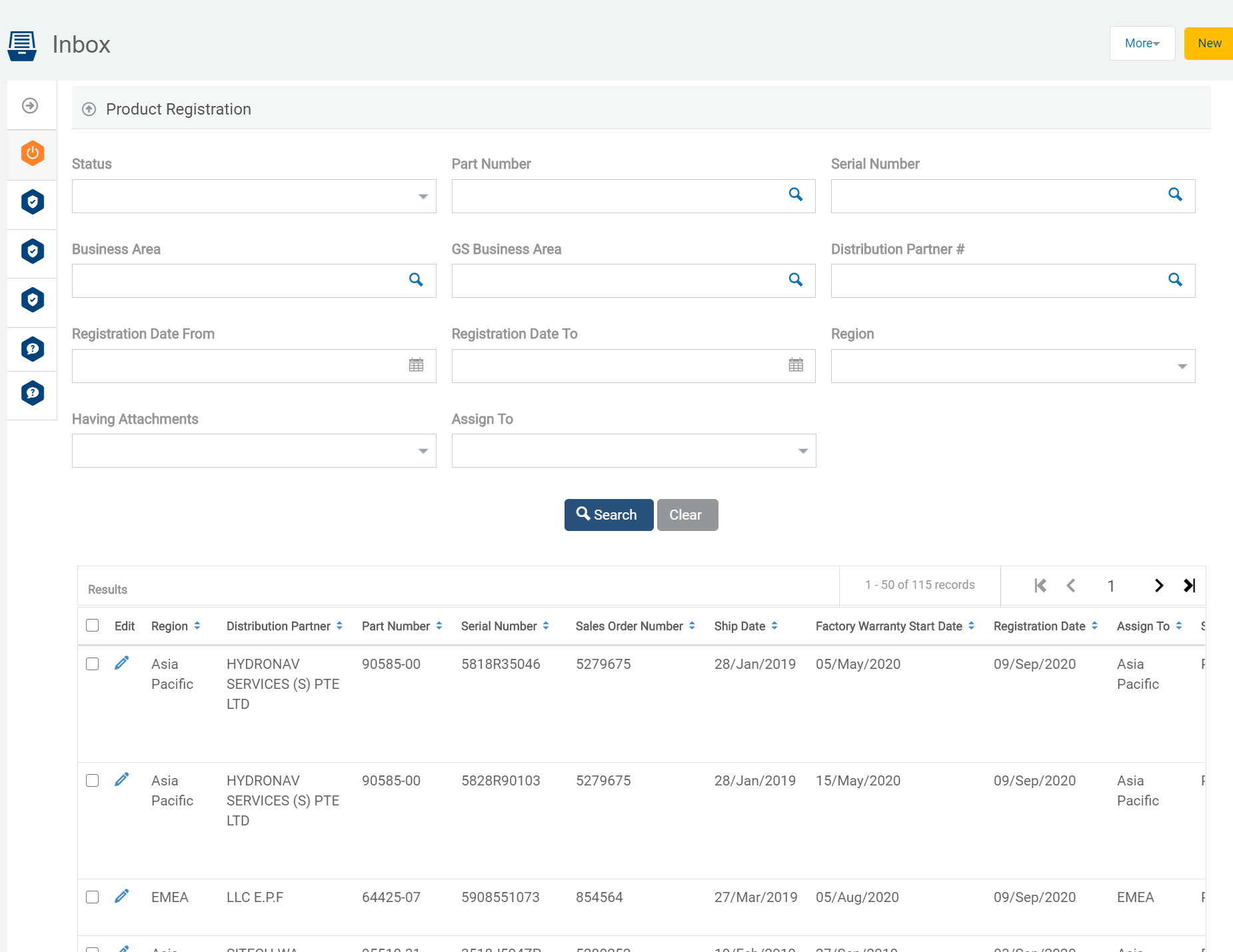
Help
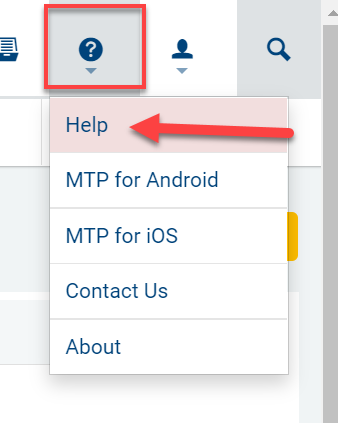
The Help section directs you to the User Guide.